Settings
Settings is where you manage your profile, income cycle, all finance tools, categories, data backup, and app preferences. Access it via the gear icon at the top-right of the dashboard.
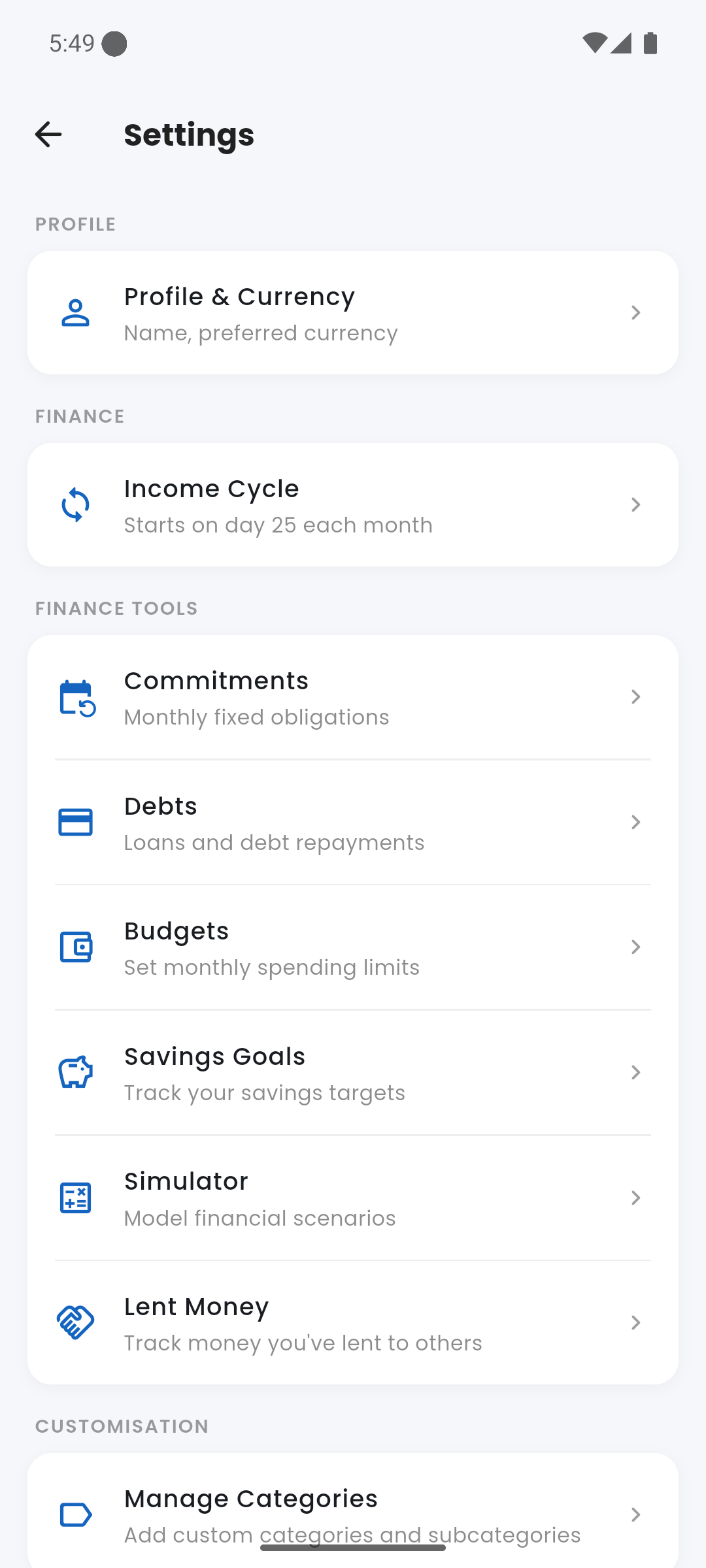
Settings — full screen overview
person Profile & Currency
Set your display name — this appears in the dashboard header as a personalised greeting (e.g. "Good evening, Adam"). You also select your preferred currency here. Currency is used for all monetary displays throughout the app.
event_repeat Income Cycle
Set the day of the month your salary or primary income arrives. This defines your income cycle — the period Expenses uses to calculate financial capacity, align the Monthly Breakdown card, and scope Reports to Income Cycle mode. For example, if your pay date is the 25th, your cycle runs from the 25th of one month to the 24th of the next.
If your income date is the 1st, the income cycle matches the calendar month exactly. The Income Cycle toggle in Reports only appears when the start day is not the 1st.
build Finance Tools
The Finance Tools section gives you access to all the financial management screens in one place:
- Commitments — manage fixed monthly obligations (rent, subscriptions, instalments). See Commitments docs.
- Debts — track outstanding loans and record payments. See Debts docs.
- Budgets — set monthly spending limits per category. See Budgets docs.
- Savings Goals — manage savings targets and log contributions. See Savings Goals docs.
- Simulator — model what-if financial scenarios. See Simulator docs.
- Lent Money — track money you've lent and record repayments. See Lent Money docs.
All Finance Tools screens are also accessible directly from the Quick Links row on the dashboard (Budgets, Savings Goals, Simulator, Lent Money) or from Settings → Finance Tools for Commitments and Debts.
label Manage Categories
Add, rename, or remove custom categories and subcategories. The Manage Categories screen covers expense categories, income sources, debt types, account types, and commitment categories — all in one place. Built-in categories are read-only; you can add as many custom ones as you need.
Custom categories you create here appear automatically in the relevant pickers throughout the app: Add Transaction, Add Commitment, Add Debt, and Add Account sheets.
backup Backup & Restore
Export all your financial data to a local backup file, or restore from a previous backup. The backup is a portable file that you control — it is not uploaded anywhere. Store it in Files, Google Drive, or any location you choose.
Always back up before making large changes — like deleting an account or resetting the app. Restoring a backup replaces all current data.
The screen also shows Pre-update Auto-backups — automatic snapshots taken by the app immediately before a database migration (version upgrade). These are kept as a safety net and can be shared or restored if an update causes issues.
play_circle Preview Intro
Replays the onboarding walkthrough — useful if you want to revisit the intro screens or show the app to someone new. This does not reset any of your data.
favorite Support the Developer
A card at the bottom of Settings links to the support options — Wise transfer or DuitNow QR — if you'd like to contribute to the app's continued development. Entirely optional; the app is and will remain free.