Simulator
The Simulator lets you model financial scenarios — what happens to your capacity if you take on a new debt or increase savings — before committing.
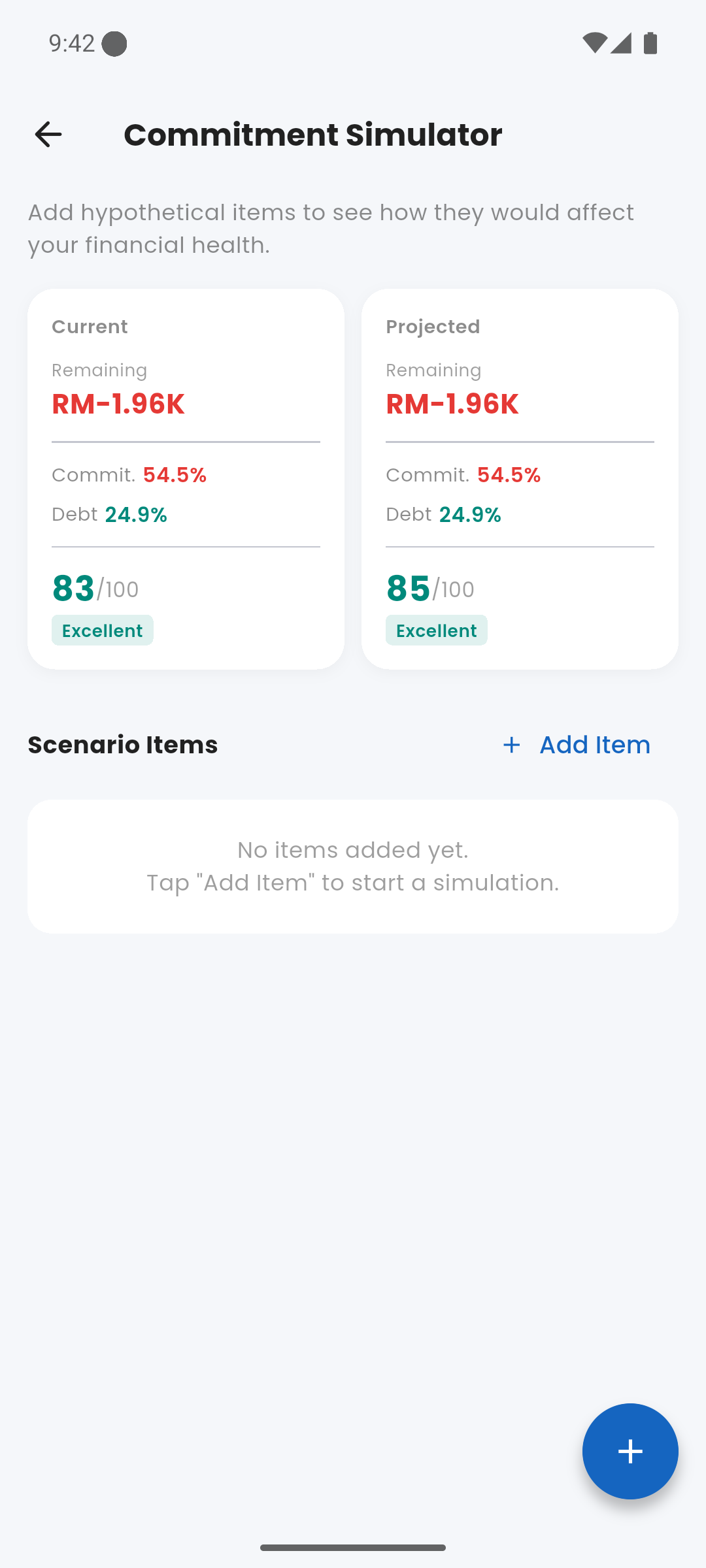
Simulator screen with scenario comparison
lightbulb How to Use
Open Simulator from the Quick Links on the dashboard. Add hypothetical items to your scenario. The screen shows your current financial capacity on the left and the projected capacity with your scenario items on the right.
category Scenario Item Types
Four types of items you can add to a simulation:
- New Debt — adds a monthly instalment to the simulation
- New Commitment — adds a fixed monthly obligation
- New Savings Goal — adds a monthly contribution
- Income Change — adjusts the income figure up or down
compare_arrows Comparison Cards
After adding items, the simulator shows:
- Current Capacity vs. Projected Capacity
- Current DSR vs. Projected DSR
- Current Savings Rate vs. Projected Savings Rate
This helps you decide: "Can I afford this car loan?" before you sign anything.
clear_all Clearing the Simulation
Tap the clear button to remove all simulation items and reset to your current actuals. Simulations are not saved between app sessions.
The Simulator only models future obligations. It does not modify your actual data — your real accounts, transactions, and balances are untouched.