Budgets
Budgets let you set monthly spending limits per category. Expenses tracks your progress in real time and warns you as you approach your limits.
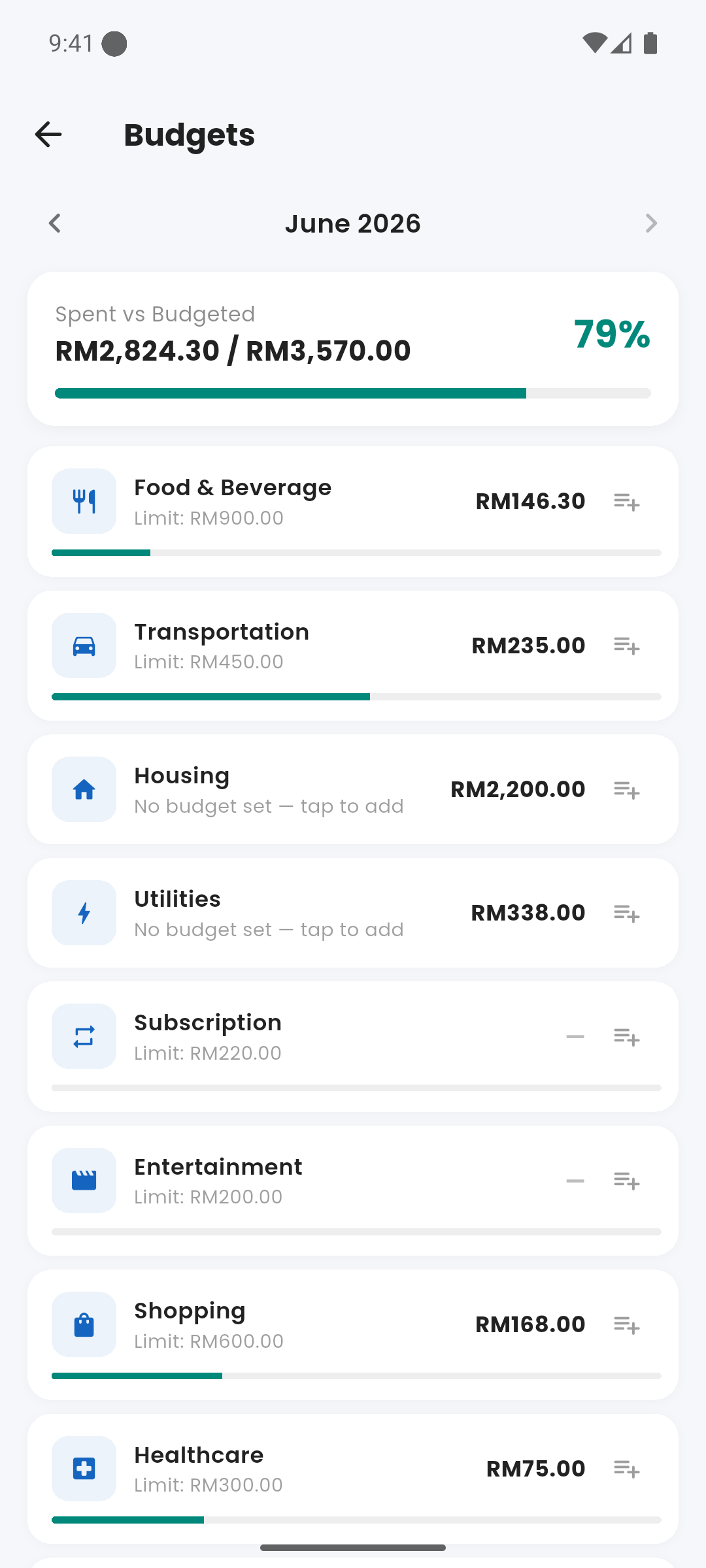
Budgets screen with category progress bars
edit_note Setting a Budget
Access Budgets from the Quick Links on the dashboard. Tap a category to set a monthly limit. Enter the amount and save — it takes effect for the current cycle immediately.
account_tree Sub-Budgets
Some top-level categories support sub-budgets. For example, "Food" can have sub-limits for "Groceries", "Dining Out", and "Coffee". Sub-budget totals roll up to the parent category.
label Budget Categories
Default categories include: Food, Transport, Shopping, Entertainment, Health, Utilities, Subscriptions, Education, Travel, Personal Care, Household, and Others. Categories are shared with the transaction tagging system.
donut_large Progress Indicators
Each budget shows a progress bar:
- Blue — within limit
- Orange — above 80% (warning)
- Red — over limit (exceeded)
The dashboard Budget Progress card shows a summary. Tap it to see the full Budgets screen.
calendar_month Month Navigation
Use the arrow buttons at the top of the Budgets screen to navigate to past months. You cannot set budgets for past months — navigation is view-only for history.
notifications Budget Notifications
Expenses sends a notification when you reach 80% of a budget category. Enable notifications in Android Settings → Apps → Expenses → Notifications.